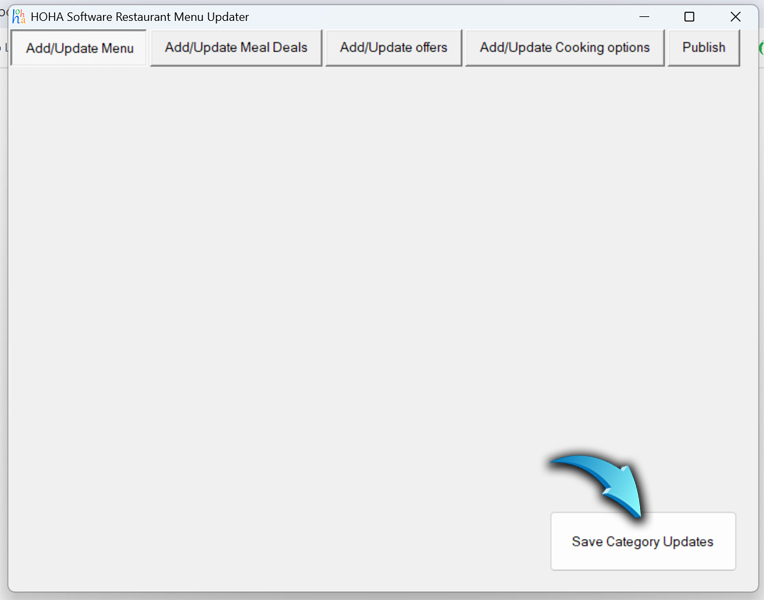
How to Enter / Update Menu
Double-click the "Menu Updater" icon on your desktop to launch the program.
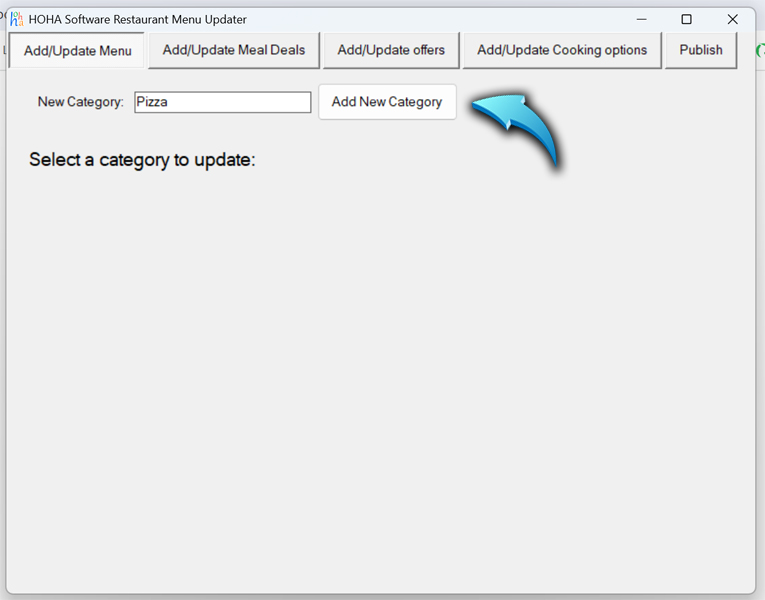
You can now add categories. For example, to add a "Pizza" category, type Pizza into the New Category field and click Add New Category.
Click the Pizza button to select that category, then click Next.

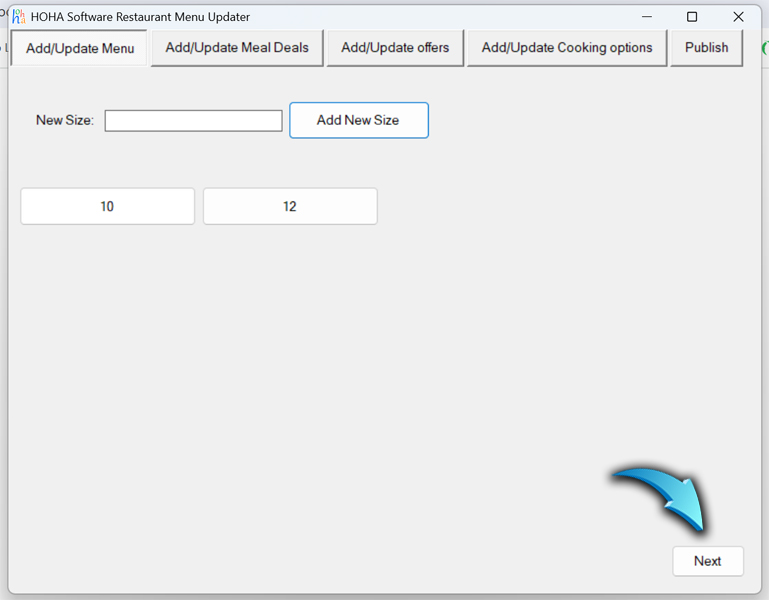
Enter all available sizes for this category. For example, type 10 into the New Size field and click Add New Size. Repeat this step to add additional sizes (e.g., 12)
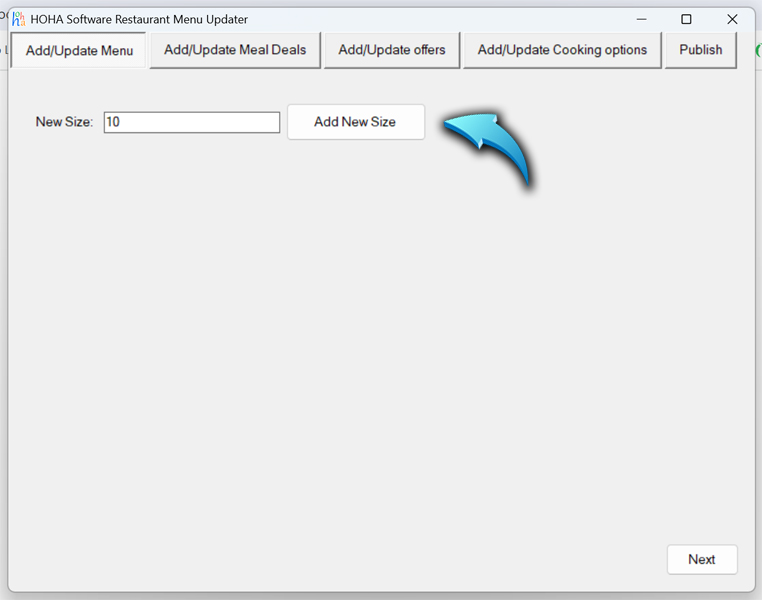
After adding all sizes, click Next
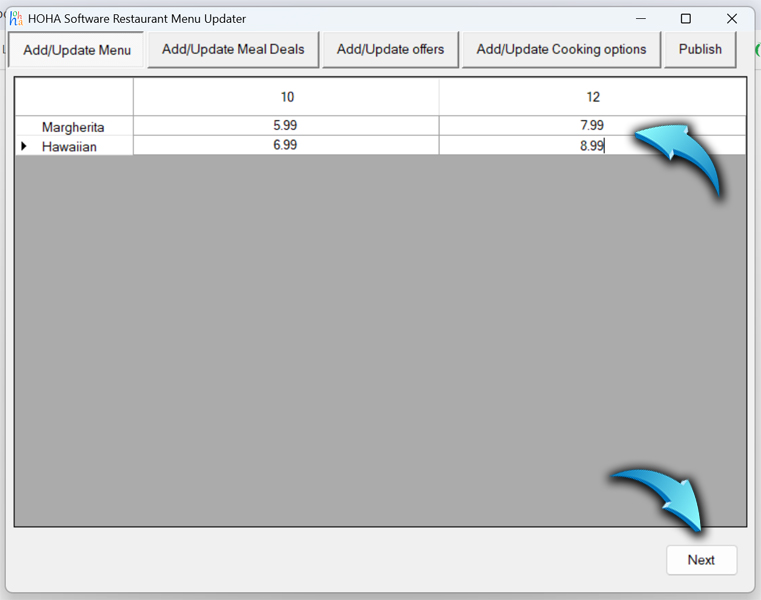
Enter the food items. Type the item name (e.g., Margherita) into the New Food field and click Add. Repeat to add all items, such as Hawaiian.

After entering all items, click Next.

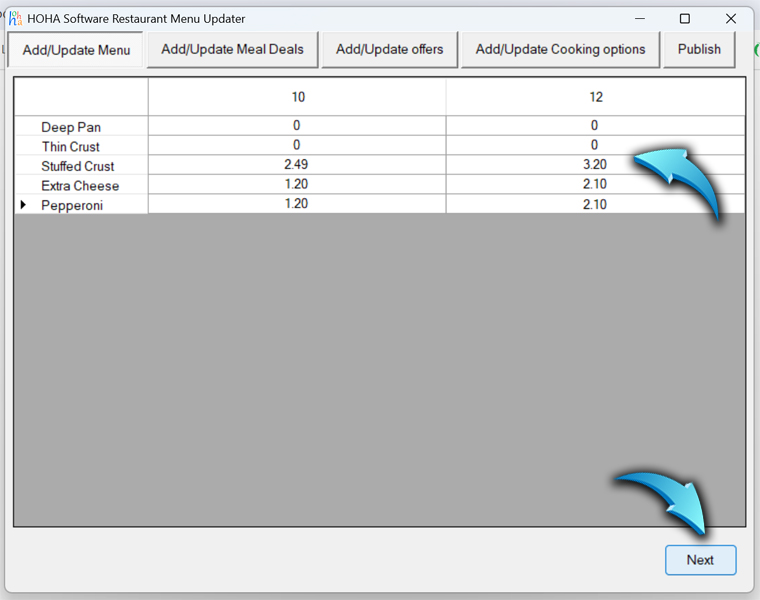
Enter all options for the items, such as crust types and toppings (e.g., Deep Pan, Thin Crust, Stuffed Crust, Extra Cheese, Pepperoni). Include both free and extra-charge options.
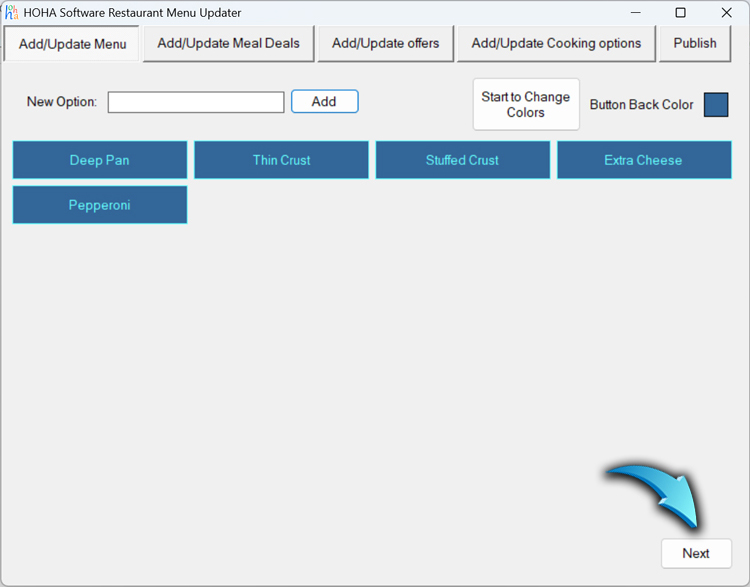
After entering all options, click Finish.

To update an existing category or item, click its button from the list and follow the previous steps to edit the information.
When you have finished updating the menu, close the Menu Editor window.
Finally, restart the program to ensure all your changes are applied correctly.